
You turned on DMARC. You put an rua= tag in the record because a guide told you to. And now, every single day, your inbox receives a small pile of emails from Google, Microsoft, Yahoo, and a rotating cast of mail providers you've never heard of, each carrying a gzipped XML attachment with a filename like google.com!yourdomain.com!1736899200!1736985600!17482910384.xml.gz.
Nobody opens these. That's the honest truth of DMARC adoption — an enormous number of domains have been sitting at p=none for years, dutifully receiving reports that nobody has ever read, which means they're getting exactly zero of the benefit and all of the noise.
The reports aren't actually hard to read. They're just hostile to look at. Here's what's inside, what actually matters, and how to get a real answer out of one in about ten minutes.
What a DMARC report is, and what it isn't
A DMARC aggregate report is a receiving mail provider telling you: "Here's every message I saw today that claimed to be from your domain, grouped by the IP that sent it, and here's whether each one passed authentication."
That's it. It's a daily census of who is sending mail as you, from the perspective of one receiver.
Some things it deliberately isn't:
- It's not per-message. Messages are grouped and counted. You get "42 messages from this IP, all passing" — not 42 individual records.
- It doesn't contain message content. No subjects, no bodies, no recipients. That's by design, for privacy. (There's a separate mechanism, forensic reports via the
ruf=tag, which does include message details — but almost nobody sends them anymore, again for privacy reasons. If you setruf=and get nothing, that's why. Don't wait for it.) - It's not a deliverability report. It won't tell you whether mail landed in inbox or spam. It only tells you about authentication.
- It's one receiver's view. Google's report covers mail sent to Gmail addresses. Microsoft's covers Outlook. You need to read across several to see the whole picture, and volume varies wildly between them.
Reports arrive daily by default — the interval is controlled by the ri= tag in your DMARC record, and 86400 seconds (one day) is both the default and, realistically, the only value anyone honors.
The anatomy of the XML
Unzip one and you'll find three meaningful sections. Skip the rest.
<report_metadata> — who sent the report and what time window it covers. Useful only for orientation. Note the org_name so you know whose perspective you're reading.
<policy_published> — this is your own DMARC record as the receiver understood it. Worth a glance, because it confirms what's actually live:
<policy_published>
  <domain>yourdomain.com</domain>
  <adkim>r</adkim>
  <aspf>r</aspf>
  <p>none</p>
  <sp>none</sp>
  <pct>100</pct>
</policy_published>
p is your policy (none, quarantine, or reject). sp is the policy for subdomains. pct is what percentage of failing mail the policy actually gets applied to — useful for staged rollouts, and a common source of "why did only some of it get quarantined."
adkim and aspf are the alignment modes, and they matter more than they look. r means relaxed: a subdomain counts as aligned with the organizational domain, so bounce.yourdomain.com aligns with yourdomain.com. s means strict: it must match exactly, and that same subdomain would now fail. If someone set alignment to strict without understanding this, it's often the entire reason mail started failing.
<record> — the actual data, one block per sending source. This is what you're here for.
The single most important thing in the whole report
Every <record> contains two different verdicts about the same message, and confusing them is the number one reason people misread these reports.
<record>
  <row>
    <source_ip>203.0.113.5</source_ip>
    <count>42</count>
    <policy_evaluated>
      <disposition>none</disposition>
      <dkim>fail</dkim>
      <spf>fail</spf>
    </policy_evaluated>
  </row>
  <identifiers>
    <header_from>yourdomain.com</header_from>
  </identifiers>
  <auth_results>
    <dkim>
      <domain>mailservice.example</domain>
      <selector>s1</selector>
      <result>pass</result>
    </dkim>
    <spf>
      <domain>bounce.mailservice.example</domain>
      <result>pass</result>
    </spf>
  </auth_results>
</record>
Read that closely. auth_results says SPF passed and DKIM passed. policy_evaluated says both failed.
Both are true. They're answering different questions.
auth_results is the raw result — did the SPF check pass, did the DKIM signature verify. In this case yes, both did, because the sending service is properly configured on its own domain.
policy_evaluated is the result after alignment — did the domain that passed match the domain in the visible From header. Here it didn't: DKIM signed as mailservice.example, SPF authorized bounce.mailservice.example, but the message claimed to be from yourdomain.com. Everything authenticated perfectly, for the wrong domain.
This is the classic third-party sender problem. Your marketing platform, help desk, or invoicing tool sends mail "from" you, signs it with its own domain, and DMARC correctly says: nothing here proves yourdomain.com authorized this.
policy_evaluated is the one that decides what happens to your mail. When you're scanning reports, that's the field to read. auth_results is context for why.
The fix for this specific pattern is nearly always custom DKIM signing — configuring the third-party service to sign with a key published under your domain, using a selector you've added to your own DNS, rather than its default shared one. Most serious providers support this; it's usually buried in settings as "DKIM authentication" or "custom domain signing." Once you've done it, checking the published records for your domain will confirm the selector is actually live in DNS, which is the step that most often gets skipped — the service says "configured," DNS says otherwise, and the reports keep failing.
A ten-minute workflow that actually works
Forget reading the XML top to bottom. Do this instead:
1. Group every record by source_ip. Across all reports from all receivers. You'll typically end up with somewhere between five and thirty distinct IPs.
2. For each IP, ask one question: do I recognize this? Your mail server, Google Workspace, your CRM, your billing system. Look up anything unfamiliar — a WHOIS or ASN lookup on the IP will usually name the service immediately, and most "mystery" IPs turn out to be a SaaS product someone in the company signed up for.
3. Cross-reference against policy_evaluated. Four possible combinations, and each means something completely different:
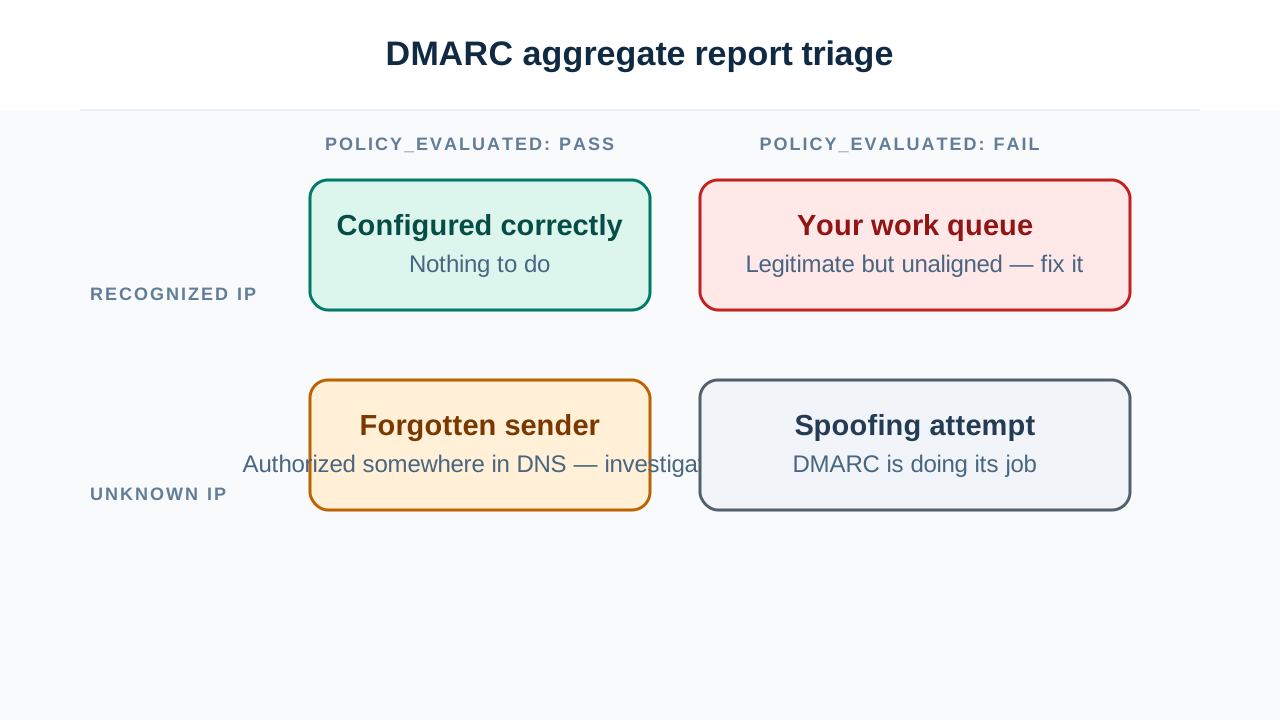
- Recognized IP, aligned pass — this source is configured correctly. Nothing to do.
- Recognized IP, fail — a legitimate service that isn't aligned. This is your work queue. Every one of these will have mail rejected the moment you move to
p=reject. - Unknown IP, fail — almost always spoofing. This is DMARC doing its job. No action needed; it's the reason you turned it on.
- Unknown IP, aligned pass — the interesting one. Something you don't recognize is authenticating successfully as your domain. That means it's legitimately authorized somewhere in your DNS, and you've forgotten about it. Usually shadow IT: a department signed up for a tool, someone added an SPF include two years ago, and it's still there. Worth investigating, because it's also what a compromised-but-authorized sender looks like.
4. Fix only the second category. Recognized-but-failing. That's the list that stands between you and enforcement.
The two failures that aren't your fault
Two patterns will show up in your reports that look like problems but aren't fixable in the usual sense, and knowing them saves a lot of wasted effort.
Forwarding breaks SPF. When someone auto-forwards your message from one address to another, the forwarding server becomes the sender. Your SPF record doesn't list it, so SPF fails at the final destination. Nothing is misconfigured — this is just how forwarding and SPF interact. DKIM usually survives forwarding intact, which is exactly why having working DKIM matters so much: it's what keeps forwarded mail authenticating when SPF inevitably fails.
Mailing lists break DKIM. Lists frequently modify messages — appending a footer, rewriting the subject with a [List Name] tag. Any body or signed-header modification invalidates the DKIM signature. Combined with the forwarding problem above, mailing list traffic often fails both checks.
There's a mechanism designed to fix this (ARC — Authenticated Received Chain), where intermediaries vouch for the authentication results they observed before modifying the message. Support is real but uneven. In practice: expect a baseline of forwarding-related failures in your reports, identify them by pattern, and don't chase them as configuration bugs.
When to stop reading them by hand
Manual reading works fine for the initial cleanup — find your sending sources, fix alignment, get to a clean baseline. That's a finite job, usually a couple of weeks.
After that, the value shifts to monitoring: catching a newly broken source, or a spoofing campaign spinning up. That's a continuous, low-signal task that humans are bad at and tools are good at. Any number of DMARC report aggregators will parse the XML, group by source, and alert you on changes.
But do the manual pass first. Reading a handful of raw reports by hand is the fastest way to actually understand your own mail flow — and you'll find sending sources you'd forgotten existed, which is worth the ten minutes on its own.
If you're setting up or adjusting the policy itself, a DMARC record generator will handle the tag syntax and let you focus on the decision that actually matters: whether your reports show every legitimate source aligning cleanly before you move past p=none.